Update a Blender Model in Roblox with Reimport
Make a Blender sword longer, export over the same FBX, and update its existing Handle without rebuilding the OriginalSword Tool.
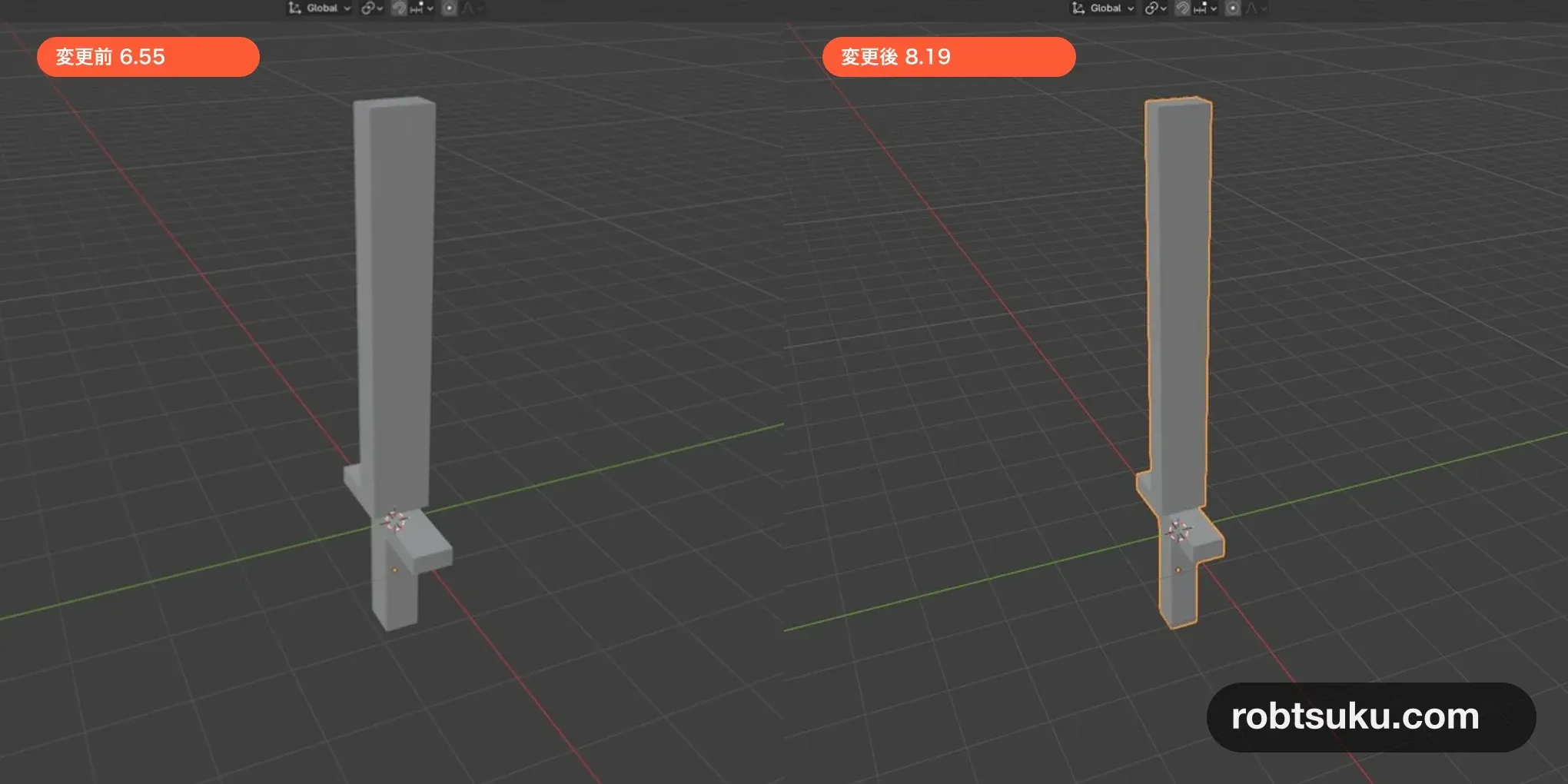
Make the Blender sword 1.25 times longer, then update the existing OriginalSword without adding another Tool or MeshPart. Reimport replaces the mesh while preserving Studio-side settings such as Grip. Allow about six minutes.
Start with the StarterPack > OriginalSword > Handle, original-sword.blend, and original-sword.fbx from Make a Roblox Sword in Blender. You do not need Robux, an external plugin, or a published game.
1. Keep the .blend file and FBX together
Open original-sword.blend in Blender. In the Outliner, confirm that the object is still named Handle. Studio also has a MeshPart named Handle, so the matching name tells Reimport which object to update.
Roblox’s Reimport mesh detection documentation explains that a source mesh whose path and name match an existing Studio mesh updates that MeshPart. A renamed source mesh is treated as a new MeshPart. Keep Handle; do not rename it to LongSword.
Tip — Reimport updates an existing object
A normal Import adds a new object. Reimport reads an edited 3D file into the existing
Handle, so the Tool name andGripcan remain while only the mesh shape changes.
Put original-sword.blend and original-sword.fbx in the same dedicated folder if either file has moved. Studio remembers a Reimport source path on the current computer. That local path does not travel with a place opened on another computer.
The two files have different jobs: the .blend file is the editable source, and the FBX is what Studio reads. Saving only the .blend file does not update the sword in Studio.
To keep a short backup, first use File > Save As to create original-sword-short.blend, then reopen the working original-sword.blend. Give only the .blend backup a new name. The Studio transfer file should remain original-sword.fbx.
2. Make Handle 1.25 times longer
In Object Mode, select Handle and press N to open Item > Transform. Press S, Z, 1.25, and Enter. The Z value under Dimensions should change from about 6.55 to 8.19.
Press Ctrl+A and choose Scale. Scale returns to 1, 1, 1, while Dimensions Z remains about 8.19.
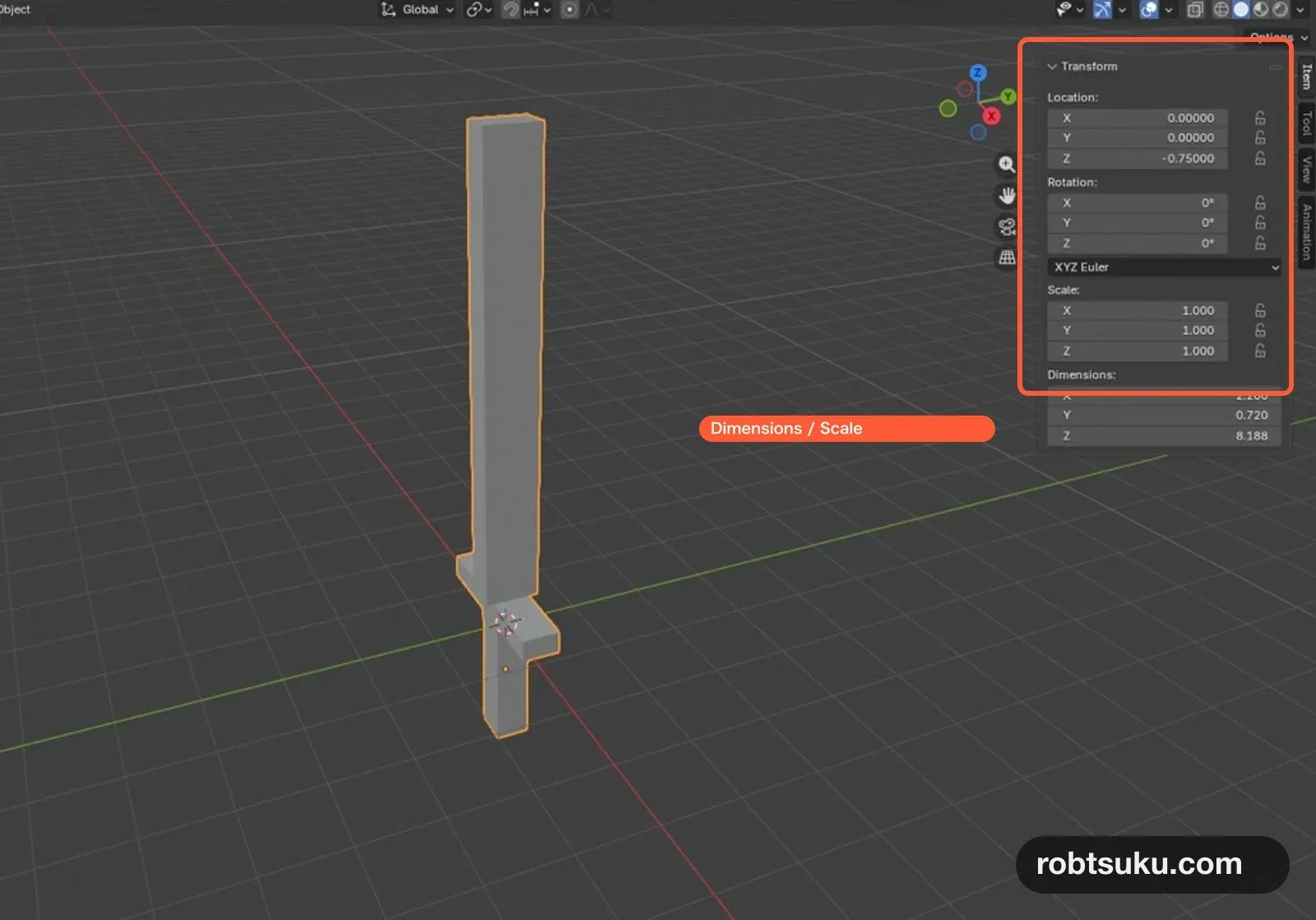
Tip — Apply Scale records the current size as 1
Applying Scale does not shorten the sword. It commits the visible
8.19length into the mesh and resets the object’s Scale values to1, 1, 1, making later exports less likely to multiply the size again.
Save the .blend file. Check the Outliner once more and select Handle before exporting. Camera or Light objects do not matter because Selected Objects will export only the selected mesh.
3. Export over the same FBX
With Handle selected, choose File > Export > FBX (.fbx). Use the same folder and exact filename, original-sword.fbx, that Studio imported before. Confirm the overwrite when Blender asks.
Keep the same settings as the first sword export:
| Setting | Value |
|---|---|
Selected Objects |
On |
Apply Scalings |
FBX Units Scale |
Forward |
Z Forward |
Up |
Y Up |
Bake Animation |
Off |
Roblox’s official Blender export settings use this unit scale and axis combination.
Before closing the file browser, check that the destination is the dedicated folder and the filename is original-sword.fbx. If you exported original-sword-long.fbx, Studio still points to the short file. You can recover by choosing the new file later through Reimport > Configure, but keeping the original path is the direct route.
4. Reimport the existing Handle
Stop any running playtest. In Explorer, right-click StarterPack > OriginalSword > Handle and choose Reimport > Reimport. Wait until the loading state finishes before clicking anything else.
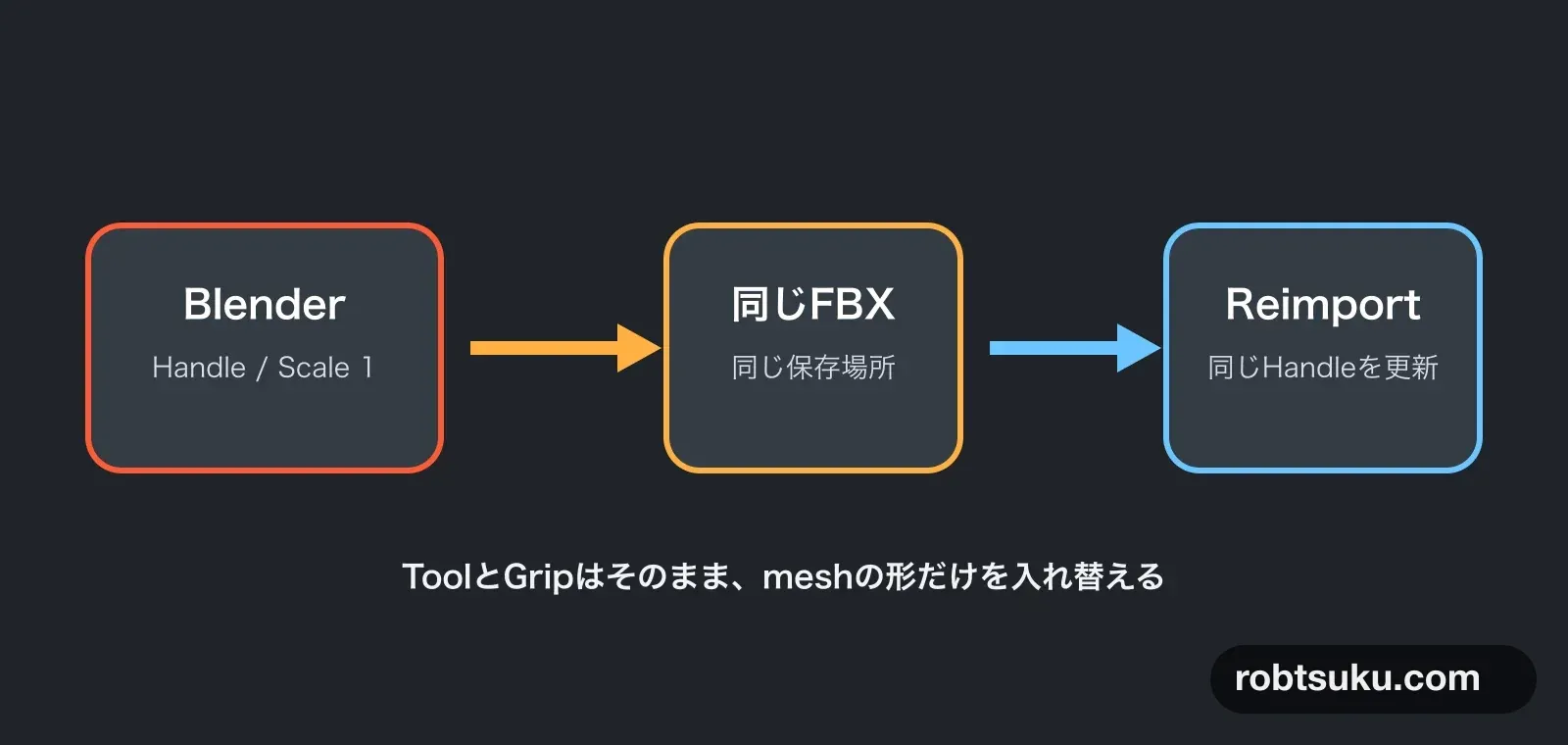
Figure guide: The middle box says Same FBX and same save location. The right box says Reimport updates the same Handle. The bottom sentence means that the Tool and Grip stay in place while only the mesh shape is replaced.
If Studio has no saved source setting for the selected object, Roblox’s Reimport models guide says the Configure screen opens. Select original-sword.fbx, then check the same Front, Top, and Stud settings used for the first Import. Configure can also appear after moving the FBX or opening the place on another computer.
If an error dialog appears, choose Configure Reimport Settings and check the file path, source name Handle, axes, and Stud scale in that order.
After Reimport, compare Explorer with:
StarterPack
└─ OriginalSword (Tool)
   └─ Handle (MeshPart)
There should be exactly one OriginalSword and one Handle. Select Handle and confirm that Anchored and CanCollide remain off. Then select the parent OriginalSword and check that its Grip > Position still has the value from the first guide.
Reimport updates mesh data and its transform while preserving Roblox-specific properties. If Grip changed, another edit was mixed into the session; compare it with the recorded value instead of adding a second Tool.
In the 3D viewport, the blade tip should now extend farther from the unchanged grip and guard. Do not place old and new Handles side by side inside the Tool just for comparison—the required result is one updated Handle.
5. Check the longer sword on an R15 avatar
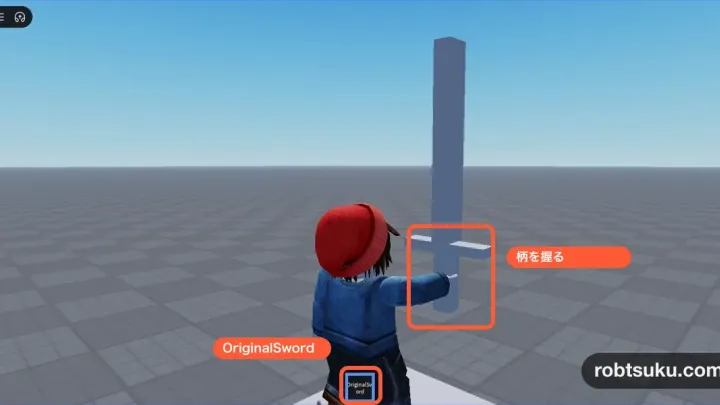
Press Play and equip OriginalSword. The blade should be longer, while the tested R15 avatar’s right hand remains centered on the grip below the guard.
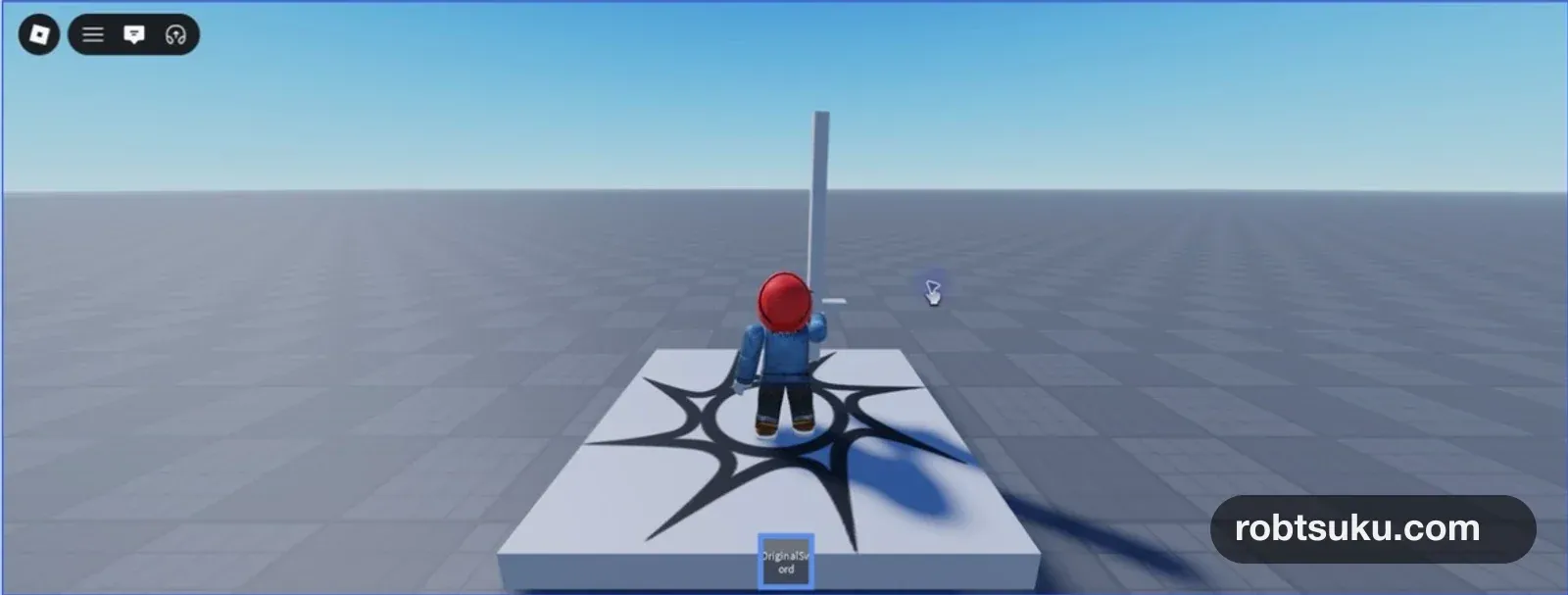
View the Tool from the front, side, and a close three-quarter angle. The grip should move with the hand; only the blade tip should extend farther. The blade and guard must not intersect the hand.
This fit claim covers the blog account’s tested R15 avatar only. If you support R6 or another body proportion, repeat the same close contact, orientation, and intersection checks for that avatar.
If the hand no longer meets the grip, Stop and select the parent OriginalSword. Adjust only the Y value of Grip > Position in 0.1 steps while checking from the side.
Unequip and re-equip from the same hotbar slot. The longer mesh should return in the same orientation each time. If the sword remains floating in place, turn Handle.Anchored off. If it catches on the environment, turn CanCollide off.
Troubleshooting
- A second Handle appears: Rename the Blender object and Studio MeshPart to
Handle, delete the unwanted copy, and Reimport again. - The sword stays short: Compare the overwritten FBX path with the file selected under Reimport > Configure.
- The size is wrong: Apply Scale in Blender, then restore
FBX Units Scaleand Studio’sStudscale. - The orientation changes: Export with
Z ForwardandY Up; configure Studio withFrontandTop.
Completion check
- Blender shows Dimensions Z near
8.19and Scale1, 1, 1. - The same
original-sword.fbxwas overwritten with the updated Handle. - Explorer still contains one Tool and one MeshPart.
- Anchored, CanCollide, and Grip keep their required values.
- The tested R15 avatar holds the longer sword by the grip and can unequip and re-equip it.
Reimport now updates the sword’s shape without rebuilding its Tool. To restore the short version, export the backup .blend file over the same FBX and Reimport again.
Next, paint the blade, guard, and grip three different colors.
Official sources
Roblox Blender Sword: Import and Equip It
Build a low-poly sword from three cubes in Blender, import it through FBX, and equip it as an OriginalSword Tool with the grip in the right place.
Build this feature
Roblox Blender Sword: UV Mapping and Textures
UV unwrap a sword, paint its blade silver, guard gold, and grip brown, then import the textured Handle into Roblox Studio.
Build this feature