Share a Roblox Game with Eligible Friends
Change a completed Roblox game from Private to Limited > Friends, send its link directly, and verify that an eligible friend can reach the GOAL.
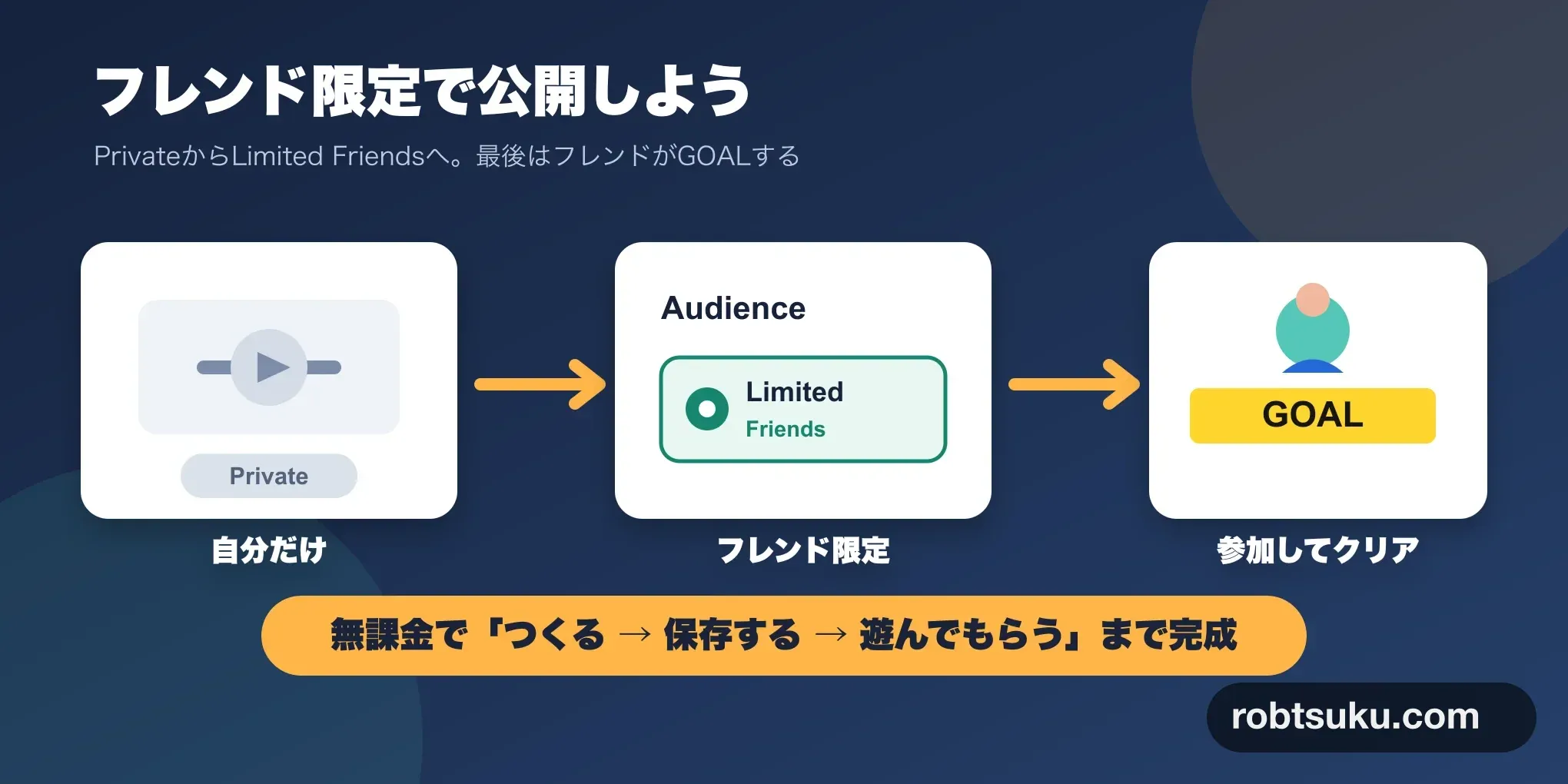
The previous lesson checked whether your account and game are ready for free friend sharing. If they are ready, change the Audience from Private to Limited > Friends, send the game link to an eligible friend, and ask them to reach the yellow GOAL.
Allow about 10–15 minutes for the Audience change and a short test in the Roblox app. You do not need Robux, Roblox Plus, or Premium for this route.
Publishing rules and Creator Dashboard labels can change. The process below was rechecked against Roblox Creator Hub on July 30, 2026.
Check the starting state
Before changing anything, confirm these three points:
- The readiness table in the previous lesson is complete.
- You are signed in to Creator Dashboard with the account that owns the Private experience.
- An eligible friend can test the game. They must be age-checked and at least 16 years old, or qualify as a Trusted Friend.
If any item is missing, leave the Audience as Private. The experience remains saved, and you can continue editing and testing its place in Studio.
Tip: Friends is not a one-person allowlist
Limited > Friendsapplies to eligible friends of the game owner. It does not grant access only to the one person who receives the URL. Check whether the owner’s current friend list is appropriate before changing the Audience.
Change the Audience to Limited Friends
Open the settings for the game that you saved as Private.
1. Open Settings under Configure
Select the completed game from Creations. In the left navigation, expand Configure and select Settings. You are in the correct place when Content Settings appears at the top.
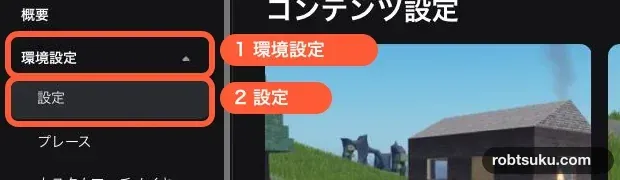
Figure guide: In this Japanese Creator Dashboard screenshot,
環境設定is Configure and設定is Settings. Open them in that order from the left navigation.
2. Select Limited and Friends
Under Audience, select Limited, then confirm that Friends is selected below it. Playtesters may also appear selected on this screen.
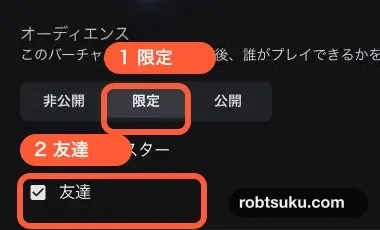
Figure guide: Marker 1 points to
限定, which is Limited. Marker 2 points to友達, which is Friends.
For an experience owned by an individual account, this option is Friends. A group-owned experience shows Community Members in the same area, so it uses a different audience.
Roblox’s Audience documentation describes Friends as the owner’s friends for a user-owned experience. A Limited experience is not listed in general search.
3. Save the change
Check the selection, then press Save Changes at the bottom of the page.
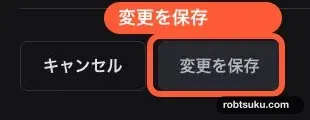
Figure guide: The button labeled
変更を保存in the screenshot is Save Changes.
Reload the page after saving and confirm that Limited and Friends remain selected. You can also return to Overview and check that Access is shown as Limited.
If the setting returns to Private or an error appears, do not keep pressing Save Changes. Open the account menu in the upper-right corner of Creator Dashboard and review Settings > Qualifications > Publishing Permissions. Then recheck the three requirements in the previous lesson: an account in good standing that is at least two days old, age verification, and a completed Maturity & Compliance Questionnaire. Keep the game Private until all required checks are complete.
Tip: Limited is not Public
Limited allows only the selected audience to join. It does not list the game in general search or on the home page. Roblox’s Kids and Select documentation describes this audience separately from Public distribution.
Send the game link directly
An eligible friend should open the experience through its details-page URL instead of searching for it.
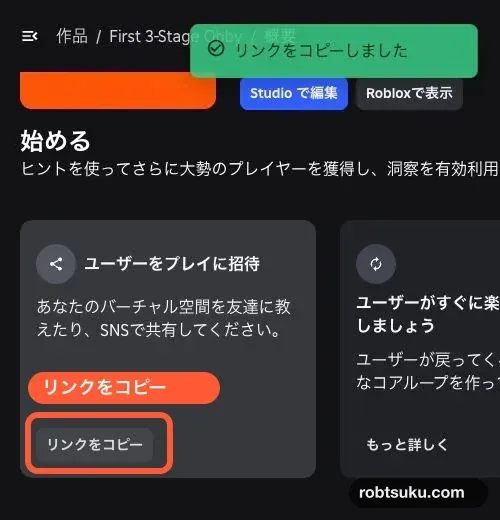
Figure guide: The control labeled
リンクをコピーis Copy Link. It copies the URL of the game’s details page.
- Open the game’s Overview in Creator Dashboard.
- Confirm that Access is Limited.
- Find Invite users to play and press Copy Link.
- After the copied confirmation appears, send the URL directly to the friend who will test the game.
The current dashboard provides the link from Overview. Roblox also documents a game-card menu route under Copy landing page link. Both routes copy a details-page URL. Do not send a password, an age-verification page, or a Creator Dashboard edit URL.
Knowing the URL does not bypass the Audience check. Even so, send it only to the intended tester rather than posting it in a public chat or on social media.
Ask the friend to join
The remaining steps happen on the friend’s account. Ask them to open the URL while signed in to the account that meets the eligibility checks.
1. Start from the game details page
- Open the URL.
- Confirm that the signed-in account is the eligible friend account.
- Press the blue triangular Play button and allow the Roblox app to open.
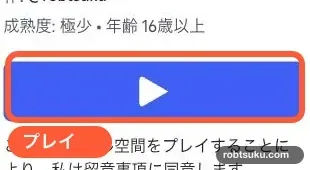
Figure guide: The blue button labeled
プレイis Play. Press it to launch the game in the Roblox app.
If the browser asks which application to open, choose Roblox. If the details page loads but the experience does not launch, first confirm that the signed-in account is currently a friend of the owner.
2. Test the obby in the Roblox app
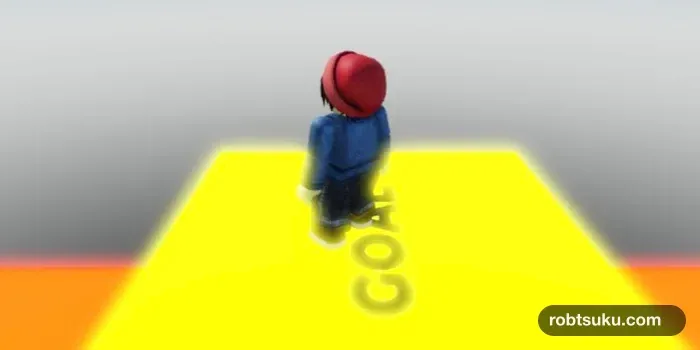
Ask the friend to:
- move from the SpawnLocation onto the course;
- touch the lava and confirm that the character respawns;
- cross both checkpoints and reach the yellow
GOAL.
Use the test to check the three mechanics in order. First, touch the lava before any checkpoint and confirm that the character returns to the SpawnLocation. Next, touch Checkpoint1, enter the lava again, and confirm that the character now returns to Checkpoint1. Finally, pass Checkpoint2 and reach the GOAL.
The owner does not need to join the same server. The friend can report where the character respawned and whether the GOAL was reachable. If they share a screenshot, keep account names and chat messages out of any image that will be published.
If Content not accessible or another join error appears, check these items in order:
- The owner’s Audience is still saved as
Limited > Friends. - The URL was opened with the intended Roblox account.
- The owner and tester are currently friends.
- The tester is at least 16 and age-checked, or qualifies as a Trusted Friend.
- The game’s Maturity & Compliance Questionnaire is complete.
If the game opens but shows an older course, the owner should open the latest local file in Studio and run File > Publish to Roblox. Changing Audience and publishing the latest game content are separate actions.
| What the friend sees | Check first |
|---|---|
Content not accessible |
Audience, signed-in account, friendship, and eligibility |
| Details page opens but Play fails | Roblox app sign-in and launch |
| Game opens but the course is old | Whether the owner published the latest local file |
| Game does not appear in search | Expected for Limited; use the direct URL |
Do not change the Audience to Public as a troubleshooting shortcut. If the cause is unclear, return the game to Private and review the readiness checks and questionnaire.
Return the game to Private when needed
You can leave the game as Limited > Friends if eligible friends should keep access. To stop sharing, return to Configure > Settings, select Private under Audience, and press Save Changes.
Changing the Audience back to Private does not delete the Studio data or the details-page URL. Friends can no longer join, but the owner can continue editing. Recheck both the publishing requirements and the game content before enabling Limited access again.
Completion check
- Creator Dashboard shows
Limited > Friends. - The game URL was sent directly to an eligible friend.
- A friend other than the owner joined through the Roblox app.
- Lava caused the character to respawn.
- A touched checkpoint became the new respawn point.
- The friend reached the yellow
GOAL. - The game remains Limited and absent from general search and the home page.
You now have a three-stage obby that started from a Baseplate, was published without a broad Public release, and was tested by another eligible player.
Previous: Check the Requirements for Free Friend Sharing