Build a Global Leaderboard in Roblox Studio
Save Score values in an Ordered Data Store and display the ten highest scores from every server on an in-game leaderboard.
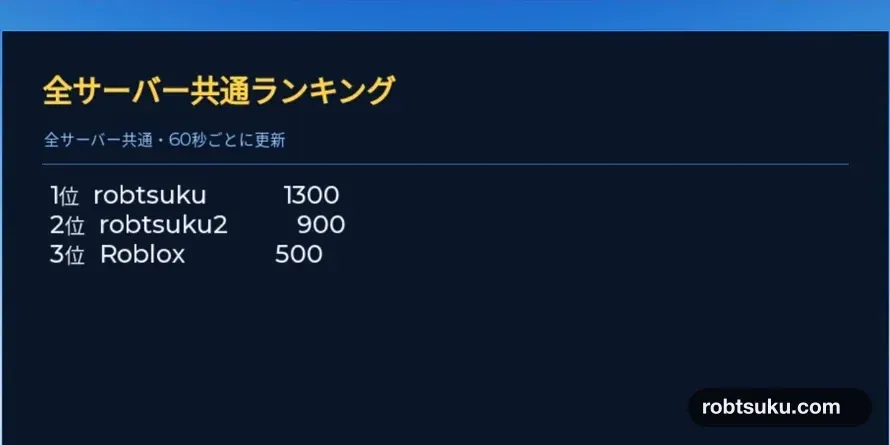
Display the ten highest Scores from every server on one board inside the game. The finished board orders values from highest to lowest, such as 1300, 900, and 500, and refreshes every 60 seconds. This takes about eight minutes and does not require Robux.
Figure guide: The Japanese board title means Global Leaderboard. The smaller line says it includes all servers and refreshes every 60 seconds; the three rows show ranks 1–3 with Scores 1300, 900, and 500.
Start after completing the Score persistence guide. Use a dedicated published test experience where leaderstats > Score and SaveScore work and Studio Access to API Services is enabled.
As Roblox explains in its Studio access guidance, Studio connects to cloud data for that experience. Do not enable this tutorial against a live production data set; use the dedicated test experience from the prerequisite.
1. Build the leaderboard board
Stop Play. Add a Part to Workspace, rename it GlobalLeaderboardBoard, turn on Anchored, turn off CanCollide, and set Size to 18, 12, 1.
Add a SurfaceGui inside the Part and a Frame named Panel inside the SurfaceGui. Add three TextLabel objects under Panel and rename them Title, Status, and Entries. You may also add a thin Frame named Divider.
Workspace
└─ GlobalLeaderboardBoard (Part)
   └─ SurfaceGui
      └─ Panel (Frame)
         ├─ Title (TextLabel)
         ├─ Status (TextLabel)
         ├─ Divider (Frame)
         └─ Entries (TextLabel)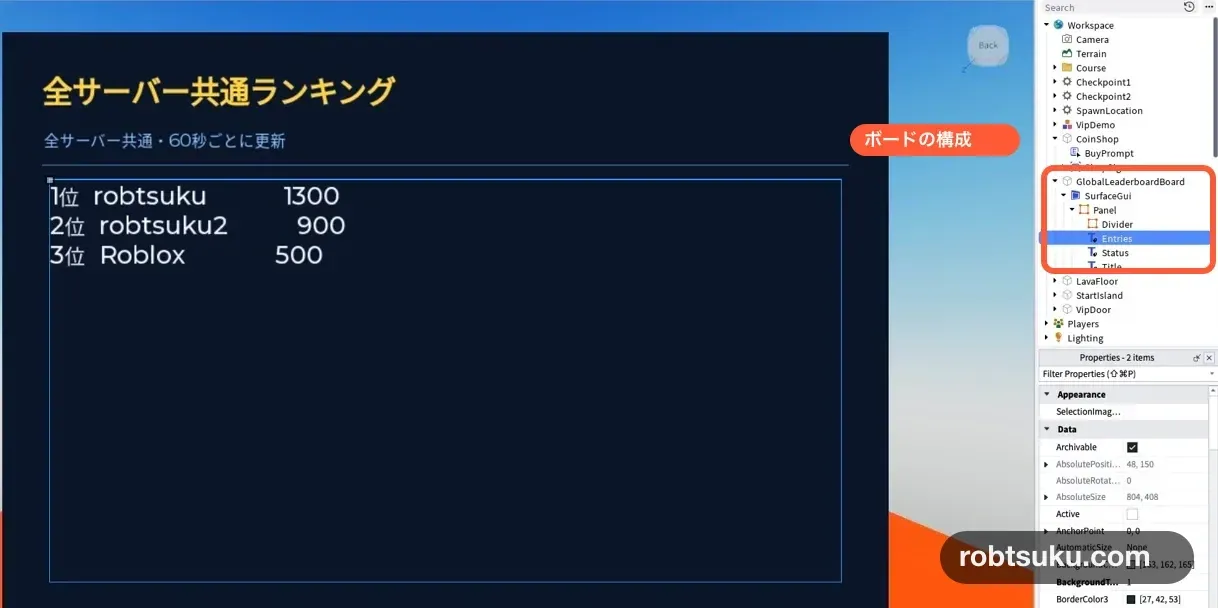
Set SurfaceGui.CanvasSize to 900, 600 and turn on AlwaysOnTop. Make each TextLabel background transparent, align its text left, and enter these values:
| Name | Text | Position | Size |
|---|---|---|---|
Title |
Global Leaderboard |
40, 26 |
820, 64 |
Status |
Waiting for refresh... |
42, 92 |
816, 34 |
Entries |
No records yet |
48, 150 |
804, 408 |
Enter every Position and Size value as X and Y Offsets. For example, the Title Position uses X 40 and Y 26. A yellow GothamBold Title, cyan Status, and white Entries label match the visual separation in the screenshot. Set Entries.TextYAlignment to Top so additional rows grow downward.
If ten rows do not fit, reduce Entries.TextSize to about 25. If the board’s front looks blank, change SurfaceGui.Face from Front to Back or rotate the Part 180 degrees. Make sure Waiting for refresh... is visible before adding code; otherwise a successful read and an invisible UI look like the same failure.
Tip — SurfaceGui places UI on a Part
A
SurfaceGuidisplays text and controls on a Part’s surface. Unlike aScreenGui, it stays in the 3D world, so this one works as a physical notice board.
2. Save each departing player’s Score
Add a Script to ServerScriptService, rename it GlobalScoreWriter, and paste:
local Players = game:GetService("Players")
local DataStoreService = game:GetService("DataStoreService")

local rankingStore = DataStoreService:GetOrderedDataStore("GlobalScore_v1")
local lastSavedValue = {}

local function saveScore(player)
	local leaderstats = player:FindFirstChild("leaderstats")
	local score = leaderstats and leaderstats:FindFirstChild("Score")
	if not score then
		return
	end

	local userId = player.UserId
	local value = score.Value
	if lastSavedValue[userId] == value then
		return
	end

	local success, saveError = pcall(function()
		rankingStore:SetAsync(tostring(userId), value)
	end)

	if success then
		lastSavedValue[userId] = value
		print("Global score saved:", player.Name, value)
	else
		warn("Global score save failed:", player.Name, saveError)
	end
end

Players.PlayerRemoving:Connect(saveScore)

game:BindToClose(function()
	for _, player in Players:GetPlayers() do
		saveScore(player)
	end
end)
The standard Data Store from the prerequisite can store numbers, strings, and tables. GetOrderedDataStore("GlobalScore_v1") opens a separate store whose numeric values can be sorted. Following Roblox’s leaderboard storage example, the key is the player’s UserId converted to text and the value is the numeric Score.
Tip — An Ordered Data Store sorts numeric values
An
Ordered Data Storecan return stored numbers in value order. If three players have 500, 1300, and 900, the leaderboard can request them as 1300, 900, 500.
lastSavedValue prevents the same server shutdown from writing an unchanged Score twice. SetAsync() remains inside pcall() because a cloud request can fail.
The Script reads the server’s leaderstats > Score; it never accepts a rank or balance supplied by a player’s screen. A LocalScript may change its own display, but that change cannot enter the shared ranking.
3. Display the top ten in descending order
Add another Script to ServerScriptService, rename it GlobalLeaderboard, and paste:
local Players = game:GetService("Players")
local DataStoreService = game:GetService("DataStoreService")

local rankingStore = DataStoreService:GetOrderedDataStore("GlobalScore_v1")
local panel = workspace
	:WaitForChild("GlobalLeaderboardBoard")
	:WaitForChild("SurfaceGui")
	:WaitForChild("Panel")
local entriesLabel = panel:WaitForChild("Entries")
local statusLabel = panel:WaitForChild("Status")

local REFRESH_SECONDS = 60
local previousText = entriesLabel.Text

local function getDisplayName(userId)
	local success, name = pcall(function()
		return Players:GetNameFromUserIdAsync(userId)
	end)
	if success then
		return name
	end
	return "User " .. userId
end

local function getTopTen()
	local success, pagesOrError = pcall(function()
		return rankingStore:GetSortedAsync(false, 10)
	end)
	if not success then
		return nil, pagesOrError
	end

	local lines = {}
	for rank, entry in ipairs(pagesOrError:GetCurrentPage()) do
		local userId = tonumber(entry.key)
		local name = userId and getDisplayName(userId) or entry.key
		table.insert(lines, string.format(
			"%d.  %-18s %d",
			rank,
			name,
			entry.value
		))
	end

	if #lines == 0 then
		return "No records yet"
	end
	return table.concat(lines, "\n")
end

local function refresh()
	statusLabel.Text = "Updating..."

	local newText, readError = getTopTen()
	if newText then
		previousText = newText
		entriesLabel.Text = newText
		statusLabel.Text = "All servers • refreshes every 60 seconds"
	else
		entriesLabel.Text = previousText
		statusLabel.Text = "Update failed. Showing previous ranking"
		warn("Global leaderboard read failed:", readError)
	end
end

while true do
	refresh()
	task.wait(REFRESH_SECONDS)
end
In GetSortedAsync(false, 10), false requests the largest values first and 10 limits the first page to ten records. The OrderedDataStore reference documents those arguments.
Tip — Descending order means largest to smallest
A descending Score list is 1300, 900, 500. Changing
falsetotruereverses the order, so keepfalsefor a high-score board.
GetNameFromUserIdAsync() turns each stored UserId into a player name. If only that lookup fails, the row falls back to a label such as User 12345 instead of discarding the whole ranking.
Both Scripts must use the exact store name GlobalScore_v1. They are opening the same storage location—one writes and the other reads. A typo such as GlobalScores_v1 makes the reader Script see a different, empty store.
If fewer than ten players have saved Scores, display only the available rows. Once eleven or more records exist, the first page contains the ten highest.
4. Save a Score and check the ranking
Press Play, change Score by collecting coins, and then press Stop. Output should show Global score saved: followed by the player name and Score.
Start Play again and look at the board. A cloud update can take a few seconds, so wait for the next 60-second refresh if the first result is old. To prove that the board is global, have other accounts join the same published test experience, change their Scores, and leave once. The rows should appear in descending Score order even when the writes came from different servers.
If other people need access to the test experience, first follow the friends-only sharing guide. The exact values do not need to be 1300, 900, and 500; their order only needs to match the saved Scores.
Roblox’s custom leaderboard tutorial notes that backend updates may take a few seconds. Do not duplicate the Script or repeatedly force reads while waiting.
When a ranking read fails, the Script keeps previousText on screen and changes only the Status label.
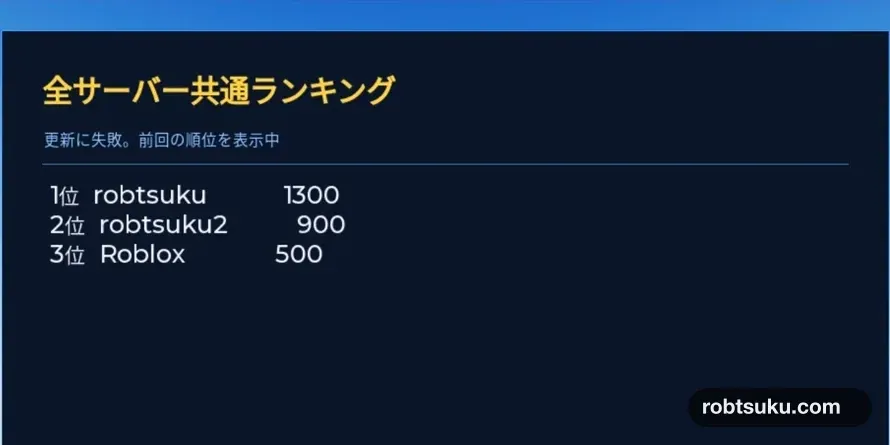
Figure guide: The Japanese Status line says Update failed. Showing previous ranking. The same three rows—1300, 900, and 500—remain visible beneath it.
The Data Store limits include an Ordered List request budget. Keep the 60-second interval instead of polling every few seconds. If the first read fails before any successful result exists, the board keeps No records yet; it can recover automatically on a later refresh.
Troubleshooting
- It always says
No records yet: Change Score, stop Play so the writer runs, start again, and wait through one refresh. - Output reports API access errors: Use the dedicated published test experience and check the Studio API setting from the prerequisite.
- A row says
User 12345: Only the name lookup failed. Keep the Score row and wait for another refresh. - The smallest Score is rank 1: Change
GetSortedAsync(true, 10)back tofalse, 10. - The board is blank: Point
SurfaceGui.Facetoward the visible side and confirm thatTitle,Status, andEntriesare insidePanel. - Rows disappear after a failed read: Keep
entriesLabel.Text = previousTextin the failure branch.
Completion check
- Leaving the test experience saves the server’s Score to
GlobalScore_v1. - The board displays up to ten records from highest to lowest.
- UserIds are converted to names with a readable fallback.
- Scores written from different servers share the same ranking.
- A failed read keeps the last successful rows visible.
- The refresh interval remains 60 seconds.
The game now has a persistent, all-server top-ten Score board.
Official sources
Display a Coin Counter in Roblox Studio
Build a ScreenGui and TextLabel that watches Score and updates immediately when a player collects, receives, or spends in-game coins.
Build this feature
Make Collectible Coins in Roblox Studio
Build three yellow coins that disappear once when touched and increase the collecting player’s leaderboard Score from 0 to 3.
Build this feature
How to Add a Score Leaderboard in Roblox Studio
Add a Score column to Roblox’s built-in player list and give every player a starting value of 0 with one server Script.
Build this feature